

Pay the CRA directly, never a person. CRA payments go only to the Receiver General / Canada Revenue Agency through your bank or the CRA's own website. AccuGen will never ask you to send tax money to us, and the CRA never asks for payment by gift card, crypto or e-transfer to an individual.
Before you start
- Your business number with the GST/HST account: 9 digits + RT + 4 digits (for example 123456789 RT0001).
- The period end of the GST/HST return you are paying (for example 2026-03-31 for a quarter ending March 31), and the amount.
Option 1: Business online banking
- Sign in to your business online banking and open the tax payment area (at TD: Pay Bills → Tax Payment and Filing → Make a Tax Payment and Filing; other banks are similar).
- Select the GST/HST payment type, or add it with Add payment type. Names differ by bank, for example Federal – GST/HST Balance Due – GST-B or Federal – GST/HST Payment – GST-P.
- Enter the period ending of the return and the amount. Keep today's date or pick a future date, then click Next.
- Review and click Submit. The payment is usually processed the next business day.
Option 2: CRA My Payment (debit card)
Pay straight on the CRA website with a Visa Debit or Debit Mastercard card, or Interac / debit through Apple Pay, Google Pay or Konek. Credit cards are not accepted. The CRA charges no fee; your bank may set a daily limit.
Open CRA My Payment → Opens the CRA's official page (canada.ca) in a new tab.
- Open the CRA My Payment page (button above, or type canada.ca/cra-my-payment) and click Pay now using My Payment.
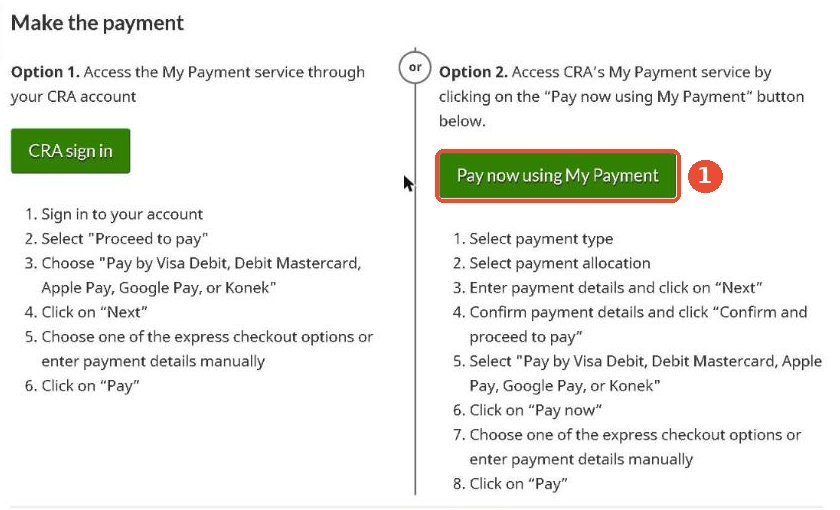
Step 1: Pay now using My Payment - Under Select payment type, choose your type.
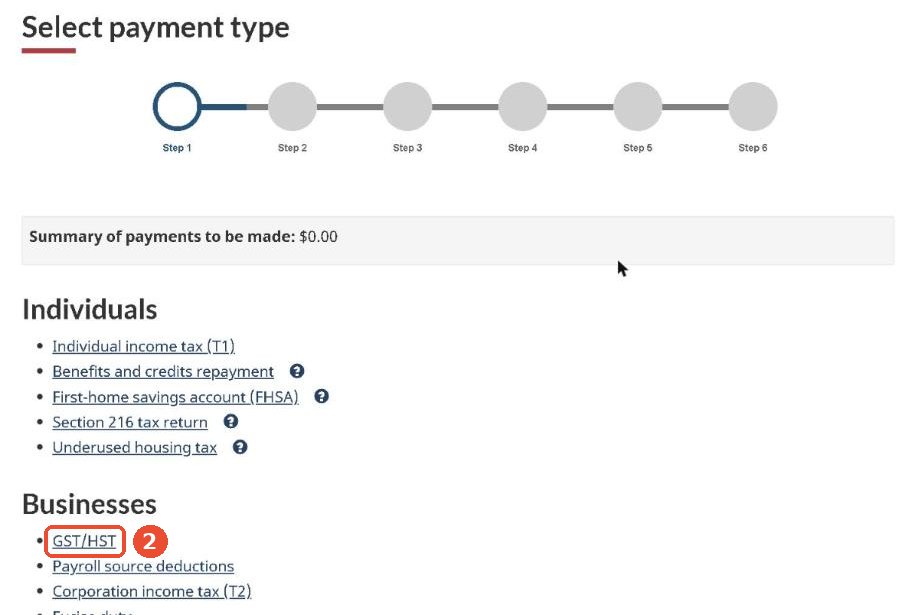
Step 2: choose the payment type - Choose where the money goes: Payment on filing if the return was filed online (NETFILE); Balance due if you are paying before filing; Amount owing for an amount on a notice of assessment; Interim for an instalment.
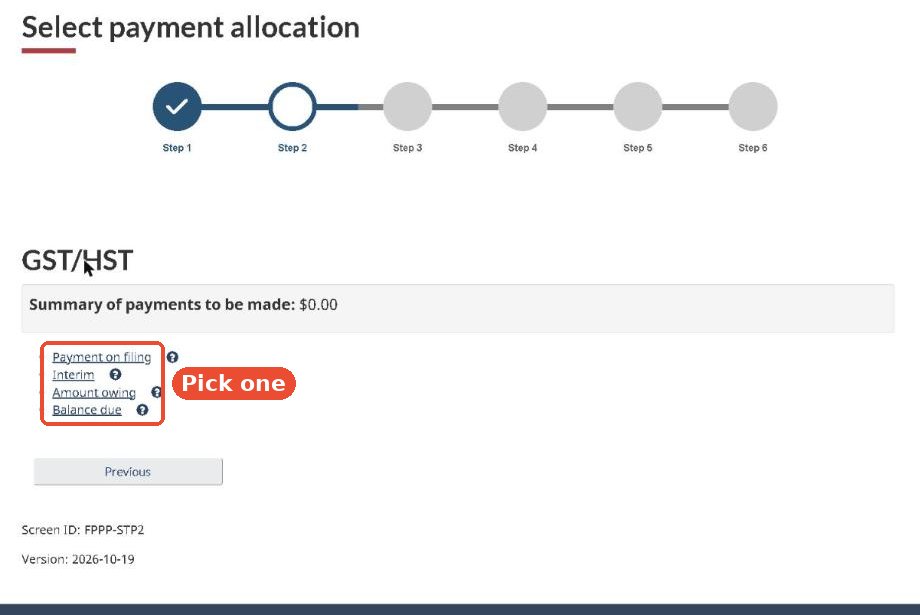
Step 3: choose where the payment goes - Enter the business number (9 digits, RT, 4 digits), the period end and the amount, then click Next.
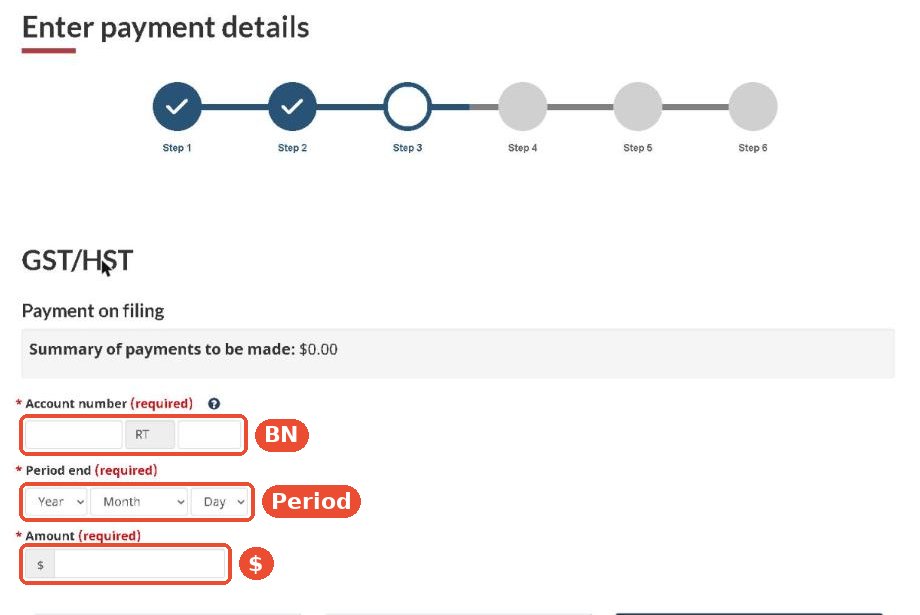
Step 4: enter the payment details, then Next - You can add another payment, or continue.
- Check the details, click Confirm and proceed to pay, choose Pay by Visa Debit, Debit Mastercard, Apple Pay, Google Pay, or Konek, then Pay now, and finish with your card or wallet.
- Save or print the receipt on the last screen (step 6 of 6).
After you pay
- Keep the confirmation (bank confirmation number or the My Payment receipt). The CRA can use it to trace a payment.
- Online payments count as received the same or next business day, depending on your bank. With My Payment, payments made after 10 p.m., on weekends or on holidays are dated the next business day. Do not leave it to the due date.
- Your CRA account can take up to 3 business days to show the payment. If it is still missing after 5 business days, tell us.
Not sure which option to choose? Call 905-215-0905 or email info@accugenltd.com before you pay.